


- Understanding the Importance of Custom Cursors
- Types of Cursor Resources: Static vs. Animated
- Static Cursors
- Animated Cursors
- Where to Find High-Quality Cursor Packs
- How to Install and Change Your Mouse Cursor
- Creating Your Own Custom Cursor Resources
- Tools and Software for Cursor Design
- Best Practices for Cursor Creation
- Optimizing Cursor Resources for Performance
- Cursor Resources for Different Operating Systems (Windows, macOS, Linux)
- Windows
- macOS
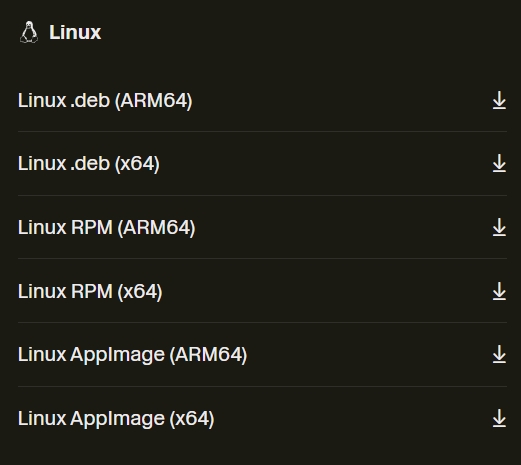
- Linux
- Accessibility Considerations for Cursor Design
- The Role of Cursors in User Experience (UX)
- Enhancing Productivity with Specialized Cursors
- Cursor Resources for Gaming and Creative Workflows
- Troubleshooting Common Cursor Issues
- Future Trends in Digital Pointer Technology
- Community and Forums for Cursor Enthusiasts
- Maximizing Your Digital Workspace with the Right Cursor
- Frequently Asked Questions
Understanding the Importance of Custom Cursors
Why stick with the default when your digital workspace can reflect your unique style? Custom cursors go far beyond mere aesthetics; they fundamentally transform your interaction with the screen.
A thoughtfully chosen cursor improves visibility, especially on complex backgrounds or multi-monitor setups. It enhances focus, making your pointer stand out and guide your eye more effectively.
For professionals, custom pointers reinforce brand identity or provide specific visual cues for different applications. Imagine a unique cursor indicating “editing mode” or “drawing tool selected.” This subtle shift boosts intuition and reduces cognitive load, proving that the right Cursor Resources are essential tools, not just decorative elements.
Types of Cursor Resources: Static vs. Animated
When exploring the vast world of Cursor Resources, you typically encounter two primary categories: static and animated. Each offers distinct advantages and visual appeal, catering to different preferences and performance needs.
Static Cursors
These are single-frame images that remain unchanging as you move them across the screen. They offer simplicity, reliability, and minimal system resource usage. Static cursors are perfect for those who value clarity and stability, providing a consistent visual reference without any distracting movement. They come in countless designs, from classic arrows to unique icons, ensuring a crisp and defined pointer experience.
Animated Cursors
Animated cursors consist of multiple frames played in a sequence, creating a dynamic effect. Think shimmering pointers, swirling circles, or cursors that change shape based on activity. These Cursor Resources add a touch of personality and flair to your desktop, making your digital environment feel more lively.
While visually engaging, remember that animations can consume slightly more system resources.
Choose animated cursors when you want to make a statement and enjoy a more dynamic interaction.
Where to Find High-Quality Cursor Packs
Hunting for exceptional Cursor Resources? Skip the low-resolution, unreliable downloads. High-quality cursor packs elevate your setup without compromising security or performance. Seek out reputable digital art communities and design marketplaces. These platforms often host experienced creators who meticulously craft their cursor sets, ensuring crisp visuals and proper functionality.
Official operating system customization portals also offer curated collections, providing safe and compatible options. Explore dedicated forums where enthusiasts share and review packs, often linking to verified sources. Prioritize sites that provide clear previews, user ratings, and details on file formats. This ensures you download legitimate, well-designed learning resources for your desktop, avoiding potential malware or poorly optimized files.
How to Install and Change Your Mouse Cursor
Transforming your digital pointer is a straightforward process, making personalized Cursor Resources accessible to everyone. Follow these general steps to install and change your mouse cursor, ensuring a smooth transition to your new design:
- Download Your Cursor Pack: Obtain your desired Cursor Resources. These often come in a compressed folder (e.g., .zip file).
- Extract Files: Unzip the downloaded folder. You will typically find individual cursor files (.cur, .ani) and sometimes an “installer” file (.inf).
- Access Cursor Settings:
- Windows: Go to “Control Panel” > “Mouse” > “Pointers” tab.
- macOS: While macOS does not directly support custom cursor files in the same way, accessibility options allow for size and color changes. Third-party utilities can offer more customization.
- Linux: The process varies by desktop environment (GNOME, KDE, XFCE). Look for “Appearance,” “Themes,” or “Cursor” settings within your system preferences.
- Browse and Apply: In the Pointers tab (Windows) or equivalent settings, you’ll see a list of cursor roles (Normal Select, Help Select, Working in Background, etc.). Select a role, then click “Browse” to locate your downloaded .cur or .ani file.
- Save Scheme: Once you’ve assigned all desired cursors, save your new setup as a “scheme” for easy access later. Click “Apply” and “OK.”
Refer to specific documentation for your operating system or desktop environment if you encounter any difficulties. Many help guides are available online for detailed, OS-specific tutorials.
Creating Your Own Custom Cursor Resources
Unleash your creativity and design Cursor Resources that are truly yours! Crafting a custom cursor allows for unparalleled personalization, ensuring your digital workspace perfectly matches your aesthetic or functional needs. Imagine a pointer tailored to your brand colors, a game-specific indicator, or an accessibility-enhanced icon. This journey into cursor creation is rewarding, transforming a simple system element into a unique piece of digital art.
The process combines artistic vision with technical precision. You choose everything: the design, colors, animation, and even the “hot spot” — the exact pixel that registers a click. Numerous learning resources are available to guide you, from understanding file formats to mastering design principles. Start transforming your ideas into tangible documentation that enhances your daily digital interaction.
Tools and Software for Cursor Design
Crafting unique Cursor Resources requires the right toolkit. Fortunately, a variety of software, ranging from simple pixel editors to advanced animation suites, supports cursor design. Your choice depends on your skill level and the complexity of your desired cursor. Here are some popular options and their features:
- Dedicated Cursor Editors: These programs specialize in cursor creation, often providing templates, hot spot definition tools, and direct export to .CUR or .ANI formats. They streamline the process for beginners and offer efficiency for experienced designers.
- Image Editing Software: Powerful programs like Photoshop, GIMP, or Paint.NET allow you to design individual cursor frames as bitmap images. You then export these frames and use a separate utility to compile them into an animated .ANI or static .CUR file. This offers maximum creative control over every pixel.
- Vector Graphics Software: For crisp, scalable designs, use vector editors like Adobe Illustrator or Inkscape. You create your cursor art, then rasterize it at the appropriate size before importing into a cursor editor or image editor. This ensures your cursor looks sharp at any resolution.
- Animation Software: If you plan animated Cursor Resources, consider software that handles frame-by-frame animation. Many image editors have basic animation capabilities, or you might use specialized tools to sequence your individual cursor frames.
Each tool offers unique advantages for bringing your custom cursor vision to life. Explore various options to find what best fits your creative workflow and technical needs.
Best Practices for Cursor Creation
Designing effective Cursor Resources goes beyond just aesthetics. Follow these best practices to create pointers that are both visually appealing and highly functional:
- Clarity is Key: Ensure your cursor’s primary function is immediately obvious. It should stand out against various backgrounds without being overly distracting. Use strong contrasts and clean lines.
- Define the Hot Spot Precisely: The “hot spot” is the single pixel that registers a click or selection. It must be accurately defined and intuitive (e.g., the tip of an arrow, the center of a crosshair). A misplaced hot spot leads to frustration.
- Optimize Size: Cursors should be easily visible but not overwhelmingly large. Test your design at different screen resolutions to ensure it remains legible without obstructing content.
- Consider Color Palettes: Choose colors that complement your desktop theme but also provide sufficient contrast. Avoid overly bright or dark colors that might disappear on similar backgrounds.
- Manage Animation (if applicable): If creating animated learning resources, keep animations subtle and purposeful. Overly complex or fast animations can be distracting or even cause performance issues. Loop animations smoothly.
- Use Appropriate File Formats: Understand the differences between .CUR (static) and .ANI (animated) files. Ensure your creation software exports to these compatible formats.
Adhering to these guidelines helps you produce high-quality help guides for your digital workspace that enhance usability and delight users.
Optimizing Cursor Resources for Performance
While custom Cursor Resources add flair, they should never hinder system performance. Optimizing your cursor files ensures smooth operation and a responsive desktop. The primary goal is to minimize file size without compromising visual quality.
For animated cursors, reduce the number of frames or simplify animations where possible. Each frame adds to the file size and processing load. Use efficient color palettes and avoid unnecessary gradients or complex effects. For all cursor types, ensure you export them in the correct, optimized format (.cur or .ani) for your operating system. Overly large or unoptimized cursor files can introduce subtle lag or increased memory usage, particularly on older systems or during intensive tasks. Prioritize lean, clean designs that offer visual impact without the performance penalty. This practical approach ensures your personalized digital pointer remains an asset, not a burden, to your overall system efficiency.
Cursor Resources for Different Operating Systems (Windows, macOS, Linux)
Navigating Cursor Resources across various operating systems reveals distinct approaches and file formats. Understanding these differences is key to seamless customization, providing valuable documentation for users on each platform.
Windows
Windows offers robust native support for custom cursors. It primarily uses two file types:
.CURfor static cursors and.ANIfor animated cursors. Users can easily change individual cursor roles (e.g., normal select, busy, text select) through the Mouse settings in the Control Panel or Settings app. Many online learning resources and packs are specifically designed for Windows, making it a highly customizable environment.macOS
macOS, by default, provides fewer direct customization options for the pointer itself. Its system cursors are designed for consistency and aesthetic integration. However, accessibility features allow users to adjust cursor size and color for better visibility. For deeper customization, third-party applications often serve as the bridge, enabling users to apply custom Cursor Resources that might involve replacing system files or running background processes. This requires a different kind of tutorials and care.
Linux
Linux environments, being highly modular, offer varied customization depending on the desktop environment (like GNOME, KDE Plasma, XFCE). Most Linux desktop environments support Xcursor themes, which are collections of cursor images. These are typically installed into specific system directories (e.g.,
/usr/share/icons) or user directories (e.g.,~/.icons). Customization is often managed through “Appearance,” “Themes,” or “Cursor” settings within the system preferences of your chosen environment. This open-source flexibility provides extensive help guides for personalizing Cursor Resources.
Each OS offers its unique pathway to a personalized pointer, enriching your digital interaction regardless of your preferred platform.
Accessibility Considerations for Cursor Design
Inclusive design for Cursor Resources means ensuring everyone can effectively interact with their digital environment. Accessibility isn’t an afterthought; it’s a fundamental aspect of cursor design. Consider users with visual impairments, motor difficulties, or cognitive challenges when creating or choosing pointers.
Design choices like increased cursor size, high-contrast colors, and distinct outlines significantly improve visibility for those with low vision. Avoiding rapid, complex animations prevents distraction and potential discomfort for users sensitive to motion. For individuals with fine motor control issues, a larger “hot spot” area around the clickable point can make targeting easier. Thoughtful learning resources on accessibility emphasize clear, predictable visual cues, reducing cognitive load and enhancing overall usability for a broader audience. Prioritize functionality and clarity to make your Cursor Resources truly universally beneficial.
The Role of Cursors in User Experience (UX)
Far from a simple pointer, the humble cursor plays a pivotal, often subconscious, role in shaping the overall User Experience (UX). It’s the primary visual feedback mechanism, constantly communicating the system’s state and potential interactions. A well-designed cursor provides immediate context: it transforms into a hand over a link, an I-beam over text, or a loading circle during a process. This visual metamorphosis reduces cognitive load, telling users what they can do next without needing explicit instructions.
Intuitive Cursor Resources create a seamless flow, guiding the user’s eye and reinforcing responsiveness. Conversely, a confusing or absent cursor disrupts the flow, leading to frustration and perceived system lag. By carefully considering shape, color, and animation, designers leverage cursors to enhance predictability, reduce errors, and foster a more engaging and efficient interaction. They are silent communicators, essential to a positive digital journey.
Enhancing Productivity with Specialized Cursors
Beyond aesthetics, specialized Cursor Resources actively boost your productivity. Imagine a cursor that visually communicates your current tool or mode, reducing the need to glance at toolbars. For graphic designers, a cursor shaped like a paintbrush instantly signals “painting mode,” while a crosshair might indicate “precise selection.”
Developers might use custom cursors that change color based on the code editor’s context, subtly guiding their focus.
These functional learning resources minimize cognitive switching, helping you stay in flow and work more efficiently. They transform your pointer from a generic indicator into an intelligent, contextual assistant, making every click more purposeful and productive.
Even simple task-management cursors, like a checkmark for completed items, provide immediate visual feedback. They transform your pointer from a generic indicator into an intelligent, contextual assistant, making every click more purposeful and productive.
Cursor Resources for Gaming and Creative Workflows
In high-stakes gaming and intricate creative work, specialized Cursor Resources become essential tools, not just aesthetic enhancements. For gamers, a custom cursor can significantly improve visibility and target acquisition in fast-paced environments. Imagine a bright, uniquely shaped cursor that never gets lost in explosions or complex backgrounds, giving you a competitive edge. It becomes an extension of your reaction time, a crucial element in achieving precision.
For artists and designers, cursors take on an even more functional role. A cursor that dynamically shows your brush size, indicates specific blending modes, or visually confirms an active layer saves precious seconds and reduces mental load. These context-aware pointers provide immediate visual feedback, streamlining complex workflows. The right learning resources transform your cursor into an indispensable part of your creative arsenal, enhancing immersion and efficiency alike.
Troubleshooting Common Cursor Issues
Even with the best Cursor Resources, you might occasionally encounter issues. Don’t worry, many common cursor problems have straightforward solutions. Here’s a quick guide to help you resolve typical glitches:
- Cursor Disappears or Becomes Invisible:
- Try pressing
Windows key + P(or your OS equivalent) and changing display modes, then reverting. - Update your graphics card drivers. Outdated drivers can cause display anomalies.
- Restart your computer. Often, a simple reboot resolves temporary software conflicts.
- Try pressing
- Cursor Lags or Jumps:
- Check your mouse’s physical surface. A dirty sensor or uneven pad can affect tracking.
- Reduce polling rate (if your mouse supports it) or DPI settings in your mouse software.
- Disable any custom animated cursors and revert to a static one. Complex animations can sometimes cause lag.
- Ensure your system isn’t overwhelmed. Close unnecessary background applications.
- Custom Cursor Doesn’t Apply or Reverts:
- Verify you followed the installation tutorials correctly for your operating system.
- Ensure the cursor files (.cur, .ani) are in a persistent location and haven’t been deleted or moved.
- If using a third-party utility, ensure it’s running in the background if required.
- Sometimes, a system update can reset cursor preferences. Reapply your scheme.
- Cursor is Too Small or Too Large:
- Adjust cursor size through your operating system’s accessibility settings (e.g., Mouse Pointers in Windows, Accessibility in macOS).
- Some custom Cursor Resources come in different size variations; try a different file from the pack.
These help guides aim to get you back to smooth digital interaction quickly. Consult specific documentation for your mouse model or operating system for more tailored solutions.
Future Trends in Digital Pointer Technology
The evolution of Cursor Resources shows no signs of slowing, promising even more immersive and intuitive digital interactions. We’re moving beyond simple customization towards intelligent, context-aware pointers. Imagine cursors that dynamically adapt their size and color based on the background, ensuring maximum visibility at all times. Think about haptic feedback integrated with your pointer, providing a subtle vibration when hovering over a clickable element, adding a new dimension to interaction.
Augmented Reality (AR) and Virtual Reality (VR) will profoundly influence cursor design. Future pointers might become three-dimensional objects, interacting with virtual environments in entirely new ways. AI could even personalize your cursor experience, learning your habits and suggesting optimal pointer styles for different tasks. These advancements will transform Cursor Resources into highly responsive, interactive elements, seamlessly blending with our ever-evolving digital landscapes.
Community and Forums for Cursor Enthusiasts
Connecting with fellow enthusiasts is an incredible way to discover new Cursor Resources, share your creations, and find valuable help guides. Online communities and forums serve as vibrant hubs where designers, gamers, and customization fans gather to discuss everything about digital pointers. You’ll find endless inspiration from others’ setups, learn advanced customization techniques, and even receive constructive feedback on your own designs.
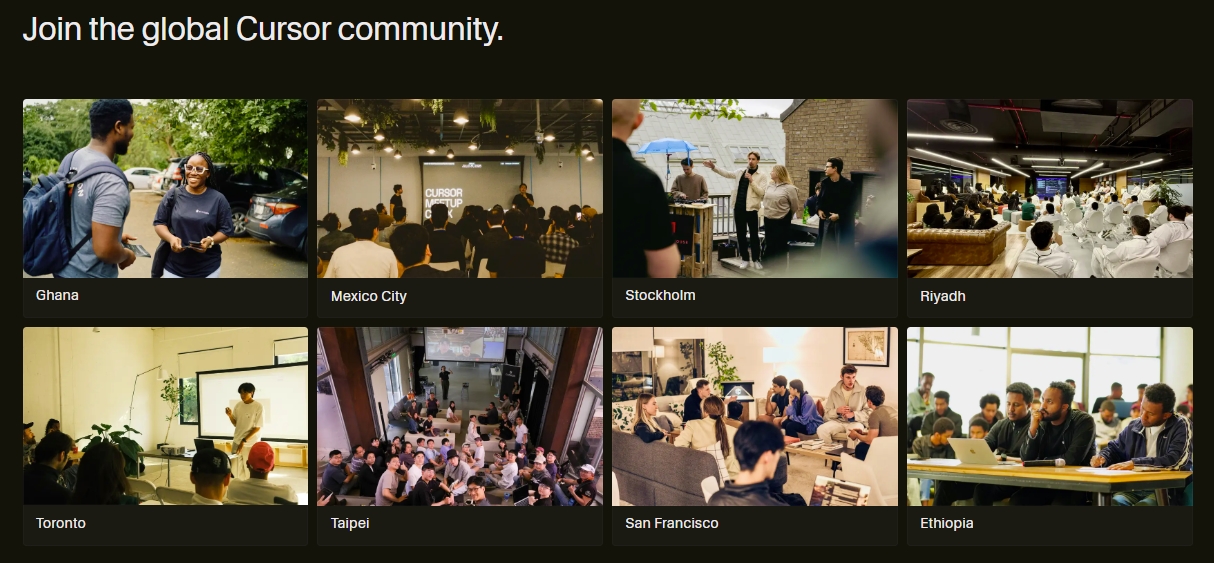
These platforms often host curated collections of cursor packs, detailed installation tutorials, and troubleshooting tips from experienced users. Engaging with the community also keeps you updated on the latest trends and emerging documentation in pointer technology. Join a forum, share your passion, and immerse yourself in a world dedicated to perfecting digital interaction through innovative cursor design.
Maximizing Your Digital Workspace with the Right Cursor
Your digital workspace is a reflection of your personality and a powerhouse of your productivity. Choosing the right Cursor Resources is a critical step in maximizing its potential. It’s about more than just aesthetics; it’s about enhancing every interaction, making your work flow smoother, and your playtime more immersive.
From improving visibility to providing contextual cues, a well-chosen cursor becomes an extension of your intent. It reduces strain, boosts focus, and adds a unique touch that makes your computer truly yours. Explore the vast world of learning resources, experiment with different styles, and don’t settle for the default. Empower your digital journey by selecting a pointer that not only looks great but also works seamlessly for you. Elevate your experience; the right cursor awaits.
Frequently Asked Questions
Why are custom cursors important for digital interaction?
Custom cursors enhance visibility and focus, especially on complex or multi-monitor setups. For professionals, they can reinforce brand identity or provide specific visual cues for different applications, improving intuition and reducing cognitive load, making them essential tools rather than just decorative elements.
What are the main types of cursor resources?
The two main types are static and animated cursors. Static cursors are single-frame images, offering simplicity and minimal resource usage. Animated cursors consist of multiple frames, creating dynamic effects that add personality but may consume slightly more system resources.
Where can I find high-quality cursor packs?
High-quality cursor packs can be found on reputable digital art communities, design marketplaces, and official operating system customization portals. Dedicated forums where enthusiasts share and review packs are also excellent sources. Prioritize sites with clear previews, user ratings, and details on file formats to ensure legitimate and well-designed downloads.
How do I install and change a custom mouse cursor?
The general process involves downloading and extracting a cursor pack (typically .zip, containing .cur or .ani files). Then, access your operating system’s cursor settings (e.g., “Mouse” in Windows, “Appearance” or “Themes” in Linux), browse to select your downloaded files for different cursor roles, and save your new setup as a scheme.
What are the key accessibility considerations for cursor design?
For accessible cursor design, it’s crucial to consider users with visual impairments, motor difficulties, or cognitive challenges. This includes using increased cursor size, high-contrast colors, distinct outlines, avoiding rapid or complex animations, and providing a larger “hot spot” area to make targeting easier. Clarity and predictable visual cues are paramount.